Physical Address
304 North Cardinal St.
Dorchester Center, MA 02124
Physical Address
304 North Cardinal St.
Dorchester Center, MA 02124

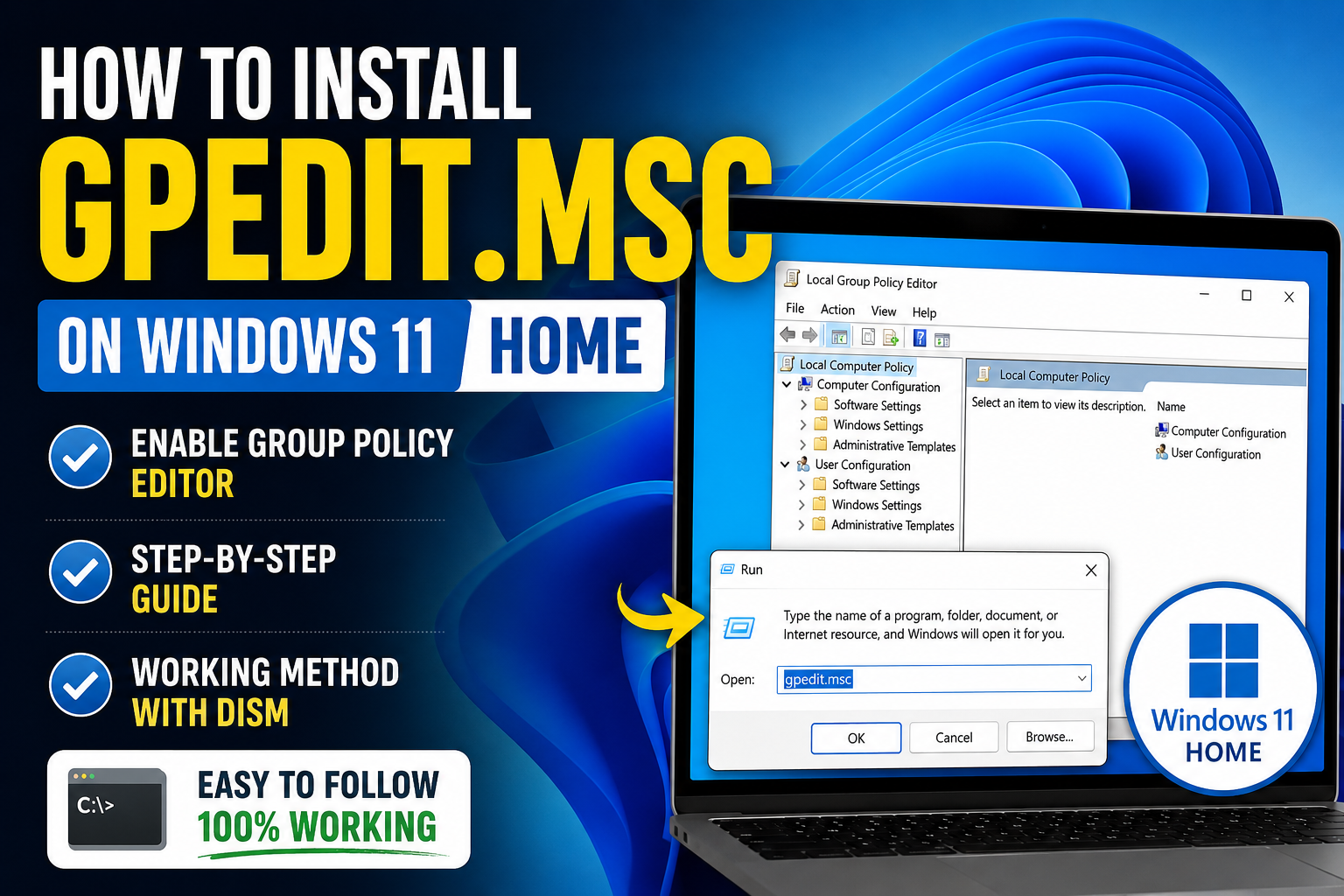
How to Install Group Policy Editor
If you are using Windows 11 Home, you may have noticed that the Local Group Policy Editor (gpedit.msc) is not available by default.
When you try to open it using the Run command, Windows may show an error such as:
Windows cannot find ‘gpedit.msc’.
This is because Microsoft does not officially include the Local Group Policy Editor in the Home edition of Windows. It is officially available in editions such as Windows 11 Pro, Enterprise, and Education.
However, on many Windows 11 Home systems, the required Group Policy components are present in the Windows component store. You can install these components using DISM (Deployment Image Servicing and Management).
In this guide, we will show you how to enable and use gpedit.msc on Windows 11 Home.
This method is not an officially supported Microsoft feature for Windows 11 Home. Results may vary depending on your Windows version and build.
Before making system-level changes, it is recommended to create a System Restore Point and back up important data.
This is the easiest method.
Copy the following command and paste it into the Administrator Command Prompt:
FOR %F IN ("%SystemRoot%\servicing\Packages\Microsoft-Windows-GroupPolicy-ClientTools-Package~*.mum") DO (DISM /Online /NoRestart /Add-Package:"%F")
Press Enter.
Windows will search for the Group Policy Client Tools package and install it using DISM.
Wait until the process finishes.
Now run the following command:
FOR %F IN ("%SystemRoot%\servicing\Packages\Microsoft-Windows-GroupPolicy-ClientExtensions-Package~*.mum") DO (DISM /Online /NoRestart /Add-Package:"%F")
Press Enter and wait for the installation to complete.
These two commands install the Group Policy Client Tools and Group Policy Client Extensions that are required for gpedit.msc.
After both commands have completed successfully, restart your Windows 11 computer.
A restart is recommended before trying to open the Group Policy Editor.
After restarting your PC:
gpedit.msc
If everything worked correctly, the Local Group Policy Editor should now open.
You can also search for gpedit.msc from the Start Menu.
If you do not want to enter the commands manually, you can create a batch file that runs both commands automatically.
Open Notepad and paste the following code:
@echo off

echo Installing Group Policy Client Tools...
FOR %%F IN ("%SystemRoot%\servicing\Packages\Microsoft-Windows-GroupPolicy-ClientTools-Package~*.mum") DO (DISM /Online /NoRestart /Add-Package:"%%F")

echo.
echo Installing Group Policy Client Extensions...
FOR %%F IN ("%SystemRoot%\servicing\Packages\Microsoft-Windows-GroupPolicy-ClientExtensions-Package~*.mum") DO (DISM /Online /NoRestart /Add-Package:"%%F")

echo.
echo Installation completed.
echo.
pause
In Notepad, click:
File → Save As
Use the following settings:
File name:
Enable-GPedit.bat
Save as type:
All Files
Save the file somewhere convenient, such as your Desktop.
Make sure the file extension is .bat and not .bat.txt.
Right-click the Enable-GPedit.bat file and select:
Run as administrator
Allow the User Account Control prompt if it appears.
The script will automatically install the required Group Policy components.
Once the process is finished, restart your computer.
After making changes in Local Group Policy Editor, you can force Windows to refresh the policies.
Open Command Prompt as Administrator and run:
gpupdate /force
You should see a message indicating that the policy update has completed.
Some policies may require you to restart the computer or sign out and sign back in.
If gpedit.msc still does not open after following the steps above, check the following.
Go to:
Settings → System → About
Look under Windows specifications and check the Edition.
If it says Windows 11 Home, Group Policy Editor is not officially included in that edition.
The DISM commands require administrator privileges.
Always use:
Right-click Command Prompt → Run as administrator
After installing the packages, restart the computer and try again:
gpedit.msc
Some newer Windows 11 builds may behave differently, and the workaround may not work correctly on every system.
If the Group Policy Editor cannot be enabled, upgrading to Windows 11 Pro is the official and supported solution.
Not necessarily.
Installing the Group Policy components does not mean that every Group Policy setting available in Windows 11 Pro, Enterprise, or Education will work correctly on Windows 11 Home.
Some policies depend on features that are only available in higher Windows editions.
Therefore, if you only need to change one specific Windows setting, it may be better to look for a supported Windows Settings or Registry-based alternative.
Windows 11 Home does not officially include the Local Group Policy Editor. However, you can try installing the required Group Policy components using DISM.
The two main commands are:
FOR %F IN ("%SystemRoot%\servicing\Packages\Microsoft-Windows-GroupPolicy-ClientTools-Package~*.mum") DO (DISM /Online /NoRestart /Add-Package:"%F")
and:
FOR %F IN ("%SystemRoot%\servicing\Packages\Microsoft-Windows-GroupPolicy-ClientExtensions-Package~*.mum") DO (DISM /Online /NoRestart /Add-Package:"%F")
After installation, restart your computer and run:
gpedit.msc
If the workaround does not work on your Windows 11 Home build, upgrading to Windows 11 Pro remains the official solution.
You can try enabling the required Group Policy components using the DISM method described above. However, Microsoft does not officially provide Local Group Policy Editor as a feature of Windows 11 Home.
Yes. Local Group Policy Editor is included in supported Windows Pro and higher editions.
The commands use Windows’ built-in DISM utility and existing Windows component packages. However, this is an unofficial workaround for the Home edition, so creating a restore point before making changes is recommended.
Press Windows + R, type gpedit.msc, and press Enter.
Open Command Prompt as Administrator and run:
gpupdate /force
Check your Windows version and build, make sure the commands were executed as Administrator, restart Windows, and try again. If it still does not work, Windows 11 Pro is the officially supported option.